
Photo cleanup for iPhone
Clear your camera roll. By hand.
RipRoll deals your photos one at a time. Swipe up to keep. Swipe down to feed the rest to a shredder, a fire pit or your own two hands — then confirm once.
On-device · No account · No ads

Drag the picture down into the shredder — or up to keep it.
Kept: 0Destroyed: 0
Sample illustrations only. In the app, nothing leaves your library until you confirm.
How it works
Keep. Destroy. Confirm once.
- 01
Swipe up to keep
The photo slides into the Keep folder at the top. Your library isn’t changed, and it won’t show up again.
- 02
Swipe down to destroy
Shred it, burn it, tear it. It goes to To Delete — not deleted yet. Changed your mind? Undo from the banner.
- 03
Confirm once
Review To Delete and send the whole batch in one step. iOS asks you too, and everything lands in Photos → Recently Deleted for about 30 days.
Seven tools
Choose how it goes.
Every tool has its own recorded sound and haptics that follow your finger.
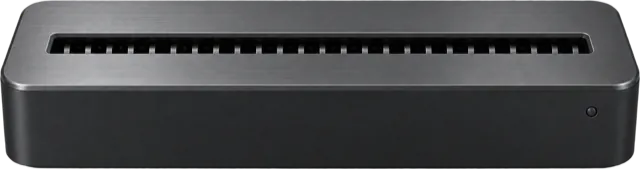
Shredder Free
Feed it in and hear a real cross-cut shredder chew it into strips.
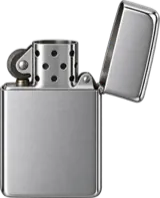
Lighter Free
Pick up the lighter, drag the flame onto the photo and burn wherever you like.
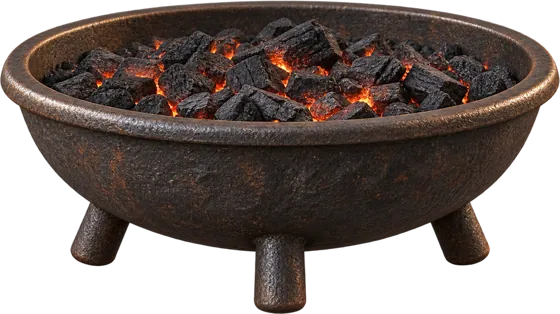
Fire Pit Free
Toss it in and watch it burn to ash from the bottom up.
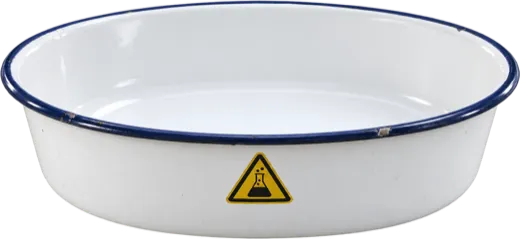
Acid Bath Pro
Dip it in. It yellows, sinks and dissolves.
Tear Pro
Tear it with your finger. The rip follows your path, white paper edge and all.
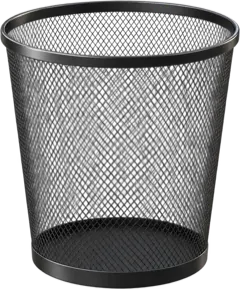
Crumple Pro
Crumple it into a ball and toss it into the wastebasket.
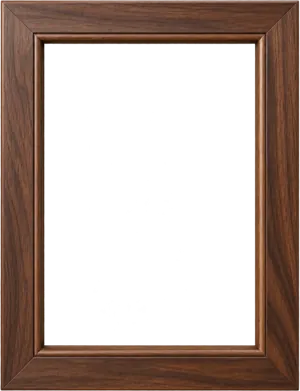
Smash Pro
It’s framed behind glass. Tap the glass — or knock on the back of your phone — to smash it.
Pro tools come with 20 free tries, shared between them.
Compare plans
The details
Made to be felt.
Real sounds, real haptics
CC0 recordings and haptics that track your finger — tear faster and the pulses get denser.
Up to 20 at once
Swipe with two fingers to select a stack, then send it to the Shredder, Fire Pit or Acid Bath.
Undo, always
Undo the last photo from the banner and it goes right back on top of the deck.
See the space you’ll free
To Delete shows how much storage the batch takes up before you confirm.
Stats & achievements
Your streak, how much you’ve cleared and what’s left to delete.
Home Screen widget
Your streak and what’s waiting in To Delete, at a glance. Requires iOS 17.
Daily reminder
A gentle nudge to clear a few each day, at a time you choose.
Share the moment
Export the last 6 seconds of a destruction as a clip. Nothing is saved unless you share it.
iCloud, Live Photos, videos
Works with your whole library, including iCloud photos, Live Photos and videos.
Scopes & Smart Groups
Start where the clutter is.
Pick a scope from the pill under the title and sort just that pile.
- All Photos
- Last 30 Days
- Screenshots
- Videos
- Bursts & Similar
- Long Videos over 60 s
- Live Photos
- Possibly Blurry scanned on device
- By Year
Everything on-device
Sorting, the blur scan and your history all run and stay on your iPhone.
Never uploaded
RipRoll never sends your photos to any server.
No account, ads or analytics
No sign-up, no ads and no analytics SDKs.
Nothing deleted without you
Deleting always needs your confirmation — and then the iOS system prompt as well.
Pricing
Free to start. Pro, once.
Free
US$0
Shredder, Lighter and Fire Pit, plus every sorting feature.
RipRoll Pro Pro
US$4.99one-time
Launch price US$2.99 for a limited time
Acid Bath, Tear, Crumple, Smash and every future tool. One-time purchase, Family Sharing, no subscription.
FAQ
Good questions.
Is anything deleted right away?
No. Photos you destroy go to To Delete first. When you’re done, review the list, put back anything you want to keep and confirm once. iOS then asks you to confirm again and moves the photos to Photos → Recently Deleted, where you can recover them for about 30 days. You can also undo the last photo from the banner at any time.
Are my photos uploaded anywhere?
No. RipRoll works entirely on your iPhone. It has no account, no ads and no analytics SDKs, and it never sends your photos to any server. The Possibly Blurry scan runs on device too. See the privacy policy.
What’s in RipRoll Pro, and how do the free tries work?
RipRoll Pro unlocks the Acid Bath, Tear, Crumple and Smash tools plus every future tool, forever, for a one-time US$4.99 (launch price US$2.99 for a limited time). Before you buy, you get 20 free tries shared across the Pro tools. See Pricing.

Your camera roll, lighter.
RipRoll is coming soon to the App Store for iPhone.
Coming soon to the App Store